Integrating SAP FSM with Microsoft Power BI: Step-by-Step Guide.
The problem: no standard connector
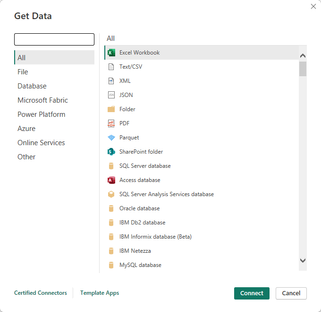
Power BI connects natively to Salesforce, S/4HANA, IBM and dozens of other sources. Not to SAP Field Service Management. The blocker isn't the data — the FSM Query API exposes all of it — but authentication: FSM speaks OAuth2 client_credentials, and Power Query cannot negotiate a token on its own. The rest of this guide is about teaching it how.
Step 1 · Create the OAuth2 client in FSM
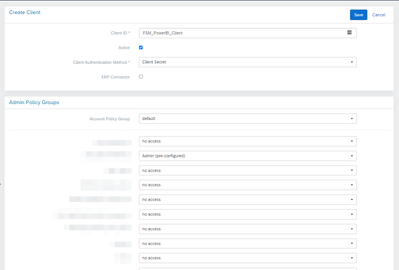
In FSM administration, create an OAuth2 client: it carries the read permissions Power BI will use. This is where you pick the rights and the company the Client ID gets access to — keep them minimal, this account only ever needs to read.
- The clientSecret is shown once, at creation time: copy it straight into your password vault.
- Grant read access to the DTOs your reports actually consume, and nothing else.
- Note the tenant (account) and company: both become query parameters later.
Step 2 · The token retrieval function
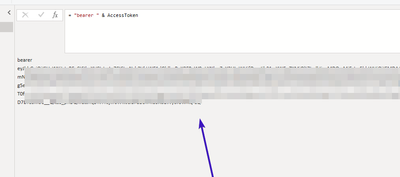
Open a blank Power BI report, go to Transform Data, then New source › Blank query. In the Advanced Editor, replace the contents with the function below and rename the query "GET Token". It concatenates the client ID and secret, base64-encodes them, and trades the result for a bearer token.
() =>
let
    // Concatenates ClientID and Client Secret, then converts to base64
    authKey = "Basic " & Binary.ToText(Text.ToBinary("CLIENTID:CLIENTSECRET"), 0),
    url = "https://eu.fsm.cloud.sap",
    // Calls the FSM POST OAuth2/token method to obtain a bearer token
    GetJson = Web.Contents(url,
        [RelativePath = "/api/oauth2/v2/token",
         Headers = [#"Authorization" = authKey,
                    #"Content-Type" = "application/x-www-form-urlencoded;charset=UTF-8"],
         Content = Text.ToBinary("grant_type=client_credentials")
        ]
    ),
    FormatAsJson = Json.Document(GetJson),
    // Gets the token from the JSON response
    AccessToken = FormatAsJson[access_token],
    AccessTokenHeader = "bearer " & AccessToken
in
    AccessTokenHeader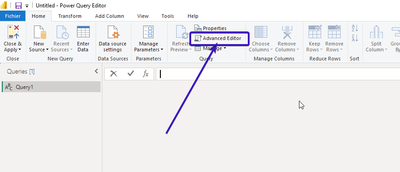
If Power BI asks for credentials
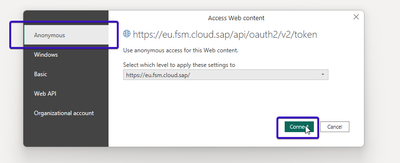
On the first run, Power BI often shows an "Edit credentials" banner. That is expected: authentication does not happen at source level but in the header the function builds itself. Pick "Anonymous", confirm, and the token comes back. Adjust the eu.fsm.cloud.sap domain too if your tenant sits on another cluster.

Step 3 · The function that queries FSM
Create a second blank query, paste the function below and name it "FSM Query". It calls the FSM Query API, reusing "GET Token" on every run — so the token is always fresh, with nothing to refresh by hand.
- query — the FSM query to run, in Query API syntax.
- DTOs — the list of DTOs the query relies on, versions included.
- companyName — the FSM company the query runs against.
- tenantName — the tenant (account) of your FSM environment.
(query as text, DTOs as text, companyName as text, tenantName as text) =>
let
    Source = Json.Document(Web.Contents("https://eu.fsm.cloud.sap",
        [RelativePath = "/api/query/v1?dtos=" & DTOs & "&query=" & query
            & "&account=" & tenantName & "&company=" & companyName & "&useExternalIds=true",
         Headers = [Authorization = "" & #"GET Token"(),
                    #"Content-Type" = "application/json",
                    #"x-client-ID" = "cpi",
                    #"x-client-version" = "1.0"]])),
    data = Source[data]
in
    data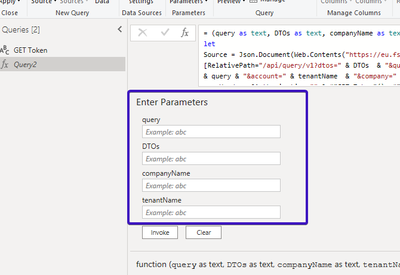
Step 4 · Invoke and model
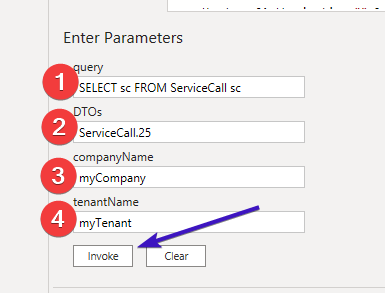
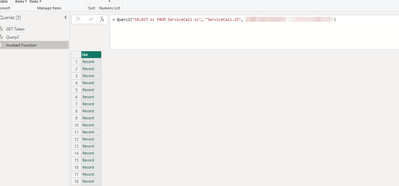
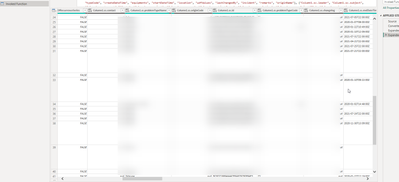
Fill in your four parameters, hit Invoke: a new query appears on the left, holding the raw result from FSM. From there you are on familiar Power BI ground — expand the nested columns, rename, set types, add your conditional columns. Duplicate the function once per dataset you need to pull.
The security caveat that matters
This method works, but it has one flaw worth knowing before you share anything: the Client ID and secret live in plain text inside the .pbix file. Whoever receives the report also receives the credentials. For a prototype or a one-off analysis that is acceptable; for a widely shared report, the secret has to leave the file — a gateway with managed credentials, or an intermediate access layer. That is exactly what our Power BI connector solves, and SAP points to SAP Analytics Cloud on its side.
An earlier version of this article appeared on the SAP Community Blog